DX
DXChoose the listening question. Keep the evidence visible.
Merged, Aligned, Outlook, Chances, and Custom are five distinct views of the same listening window—not five names for the same list.
Start with broadcasts aimed your way.
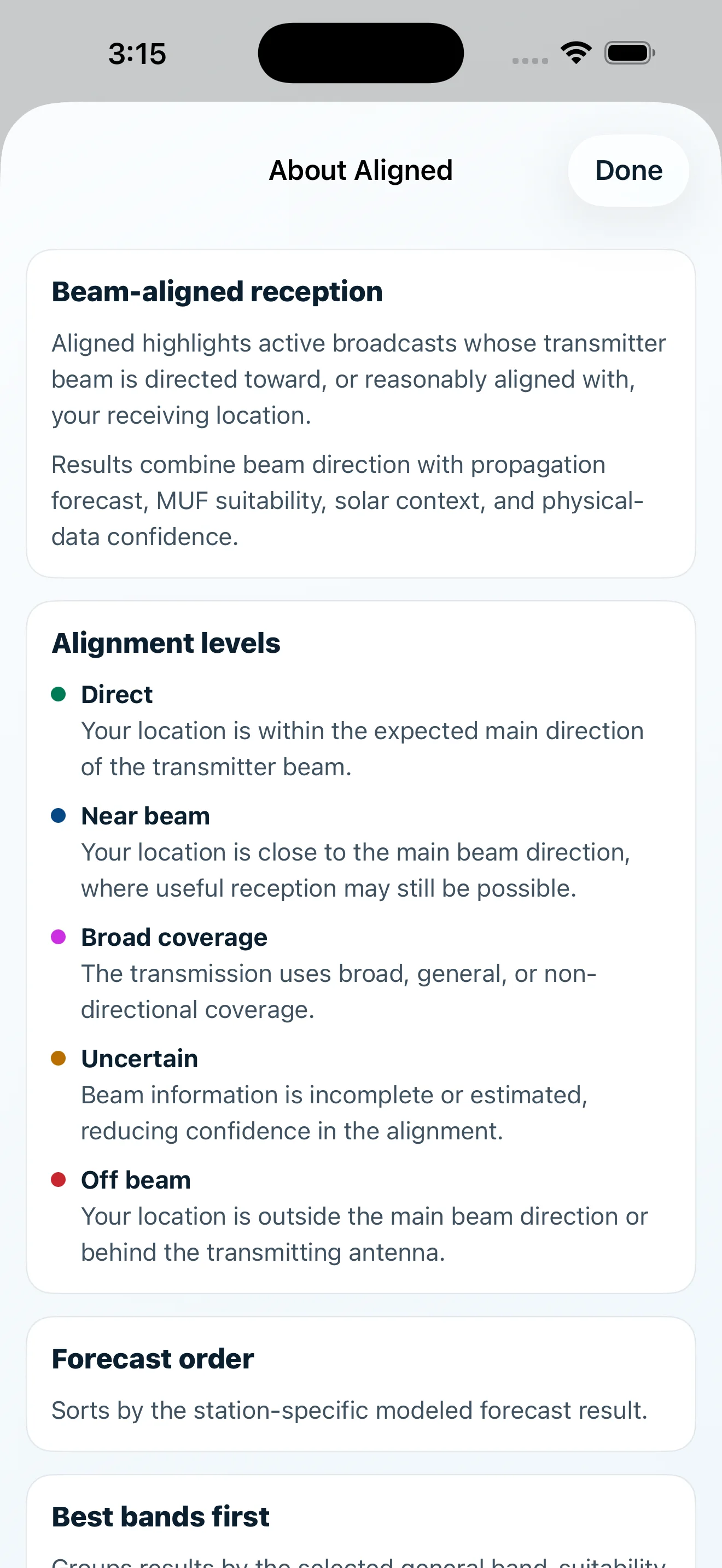
Aligned combines transmitter direction, receiver location, path geometry, forecast evidence, and data confidence. It improves relevance without pretending alignment guarantees reception.
Read the On Air guide →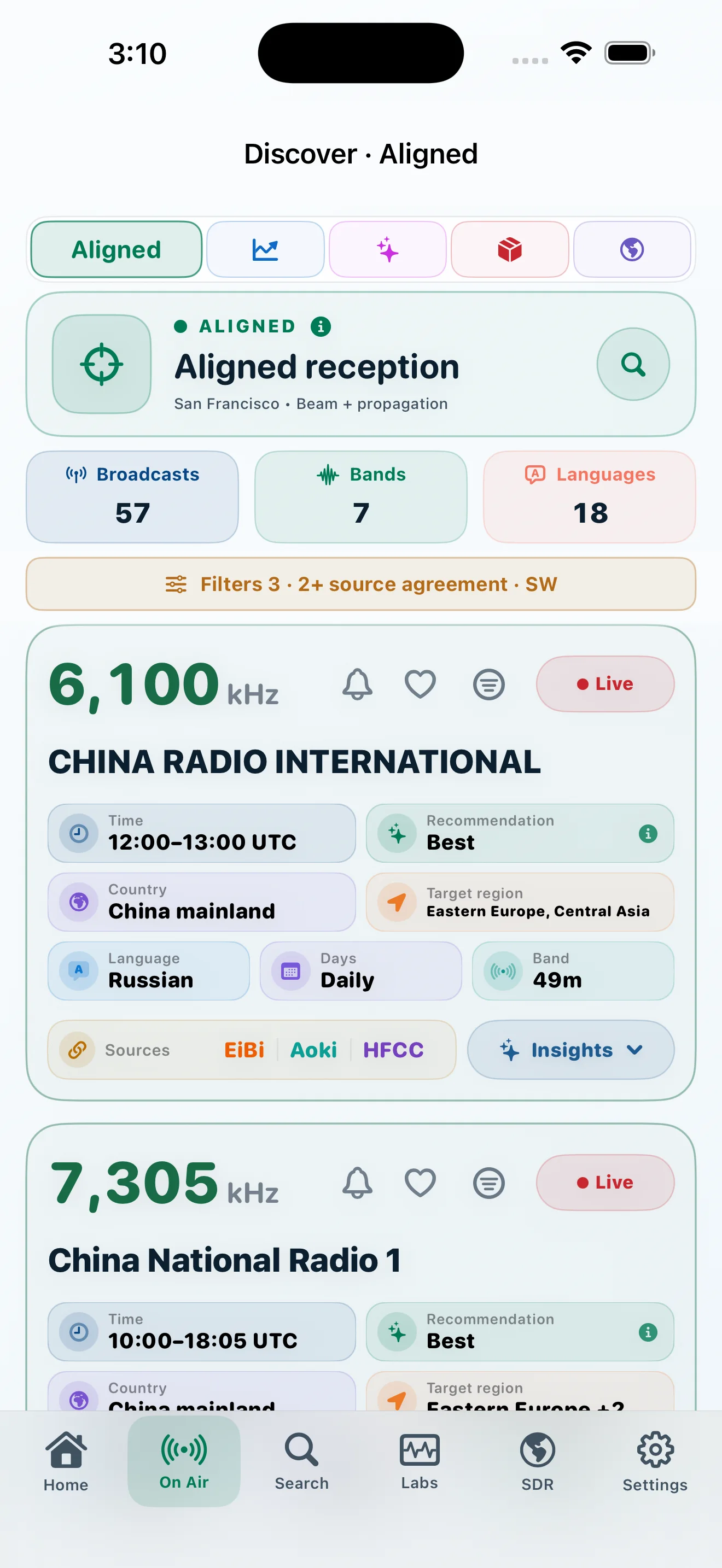
Compare the strongest listening prospects.
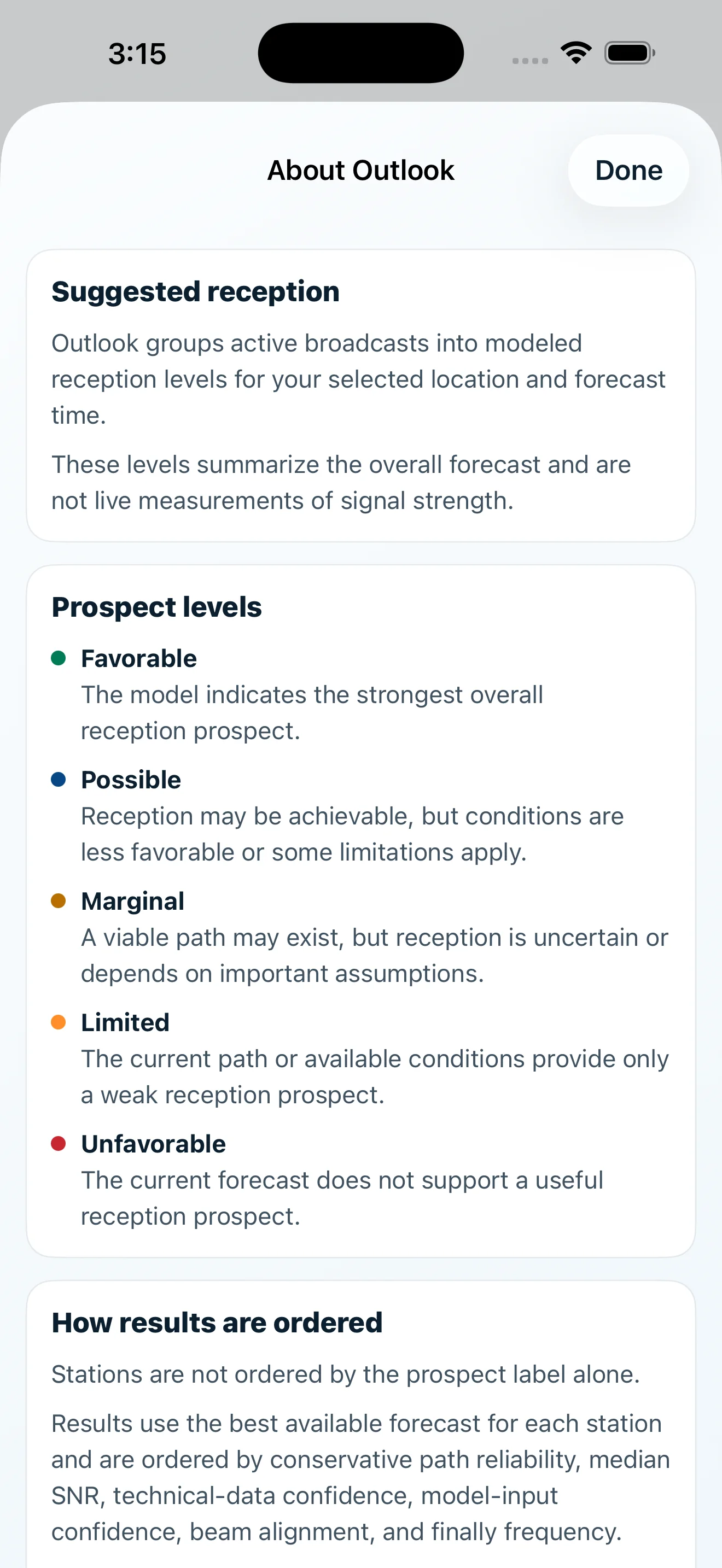
Outlook groups active stations into Favorable, Possible, Marginal, Limited, and Unfavorable prospects, then explains the evidence and assumptions behind the ordering.
Read the On Air guide →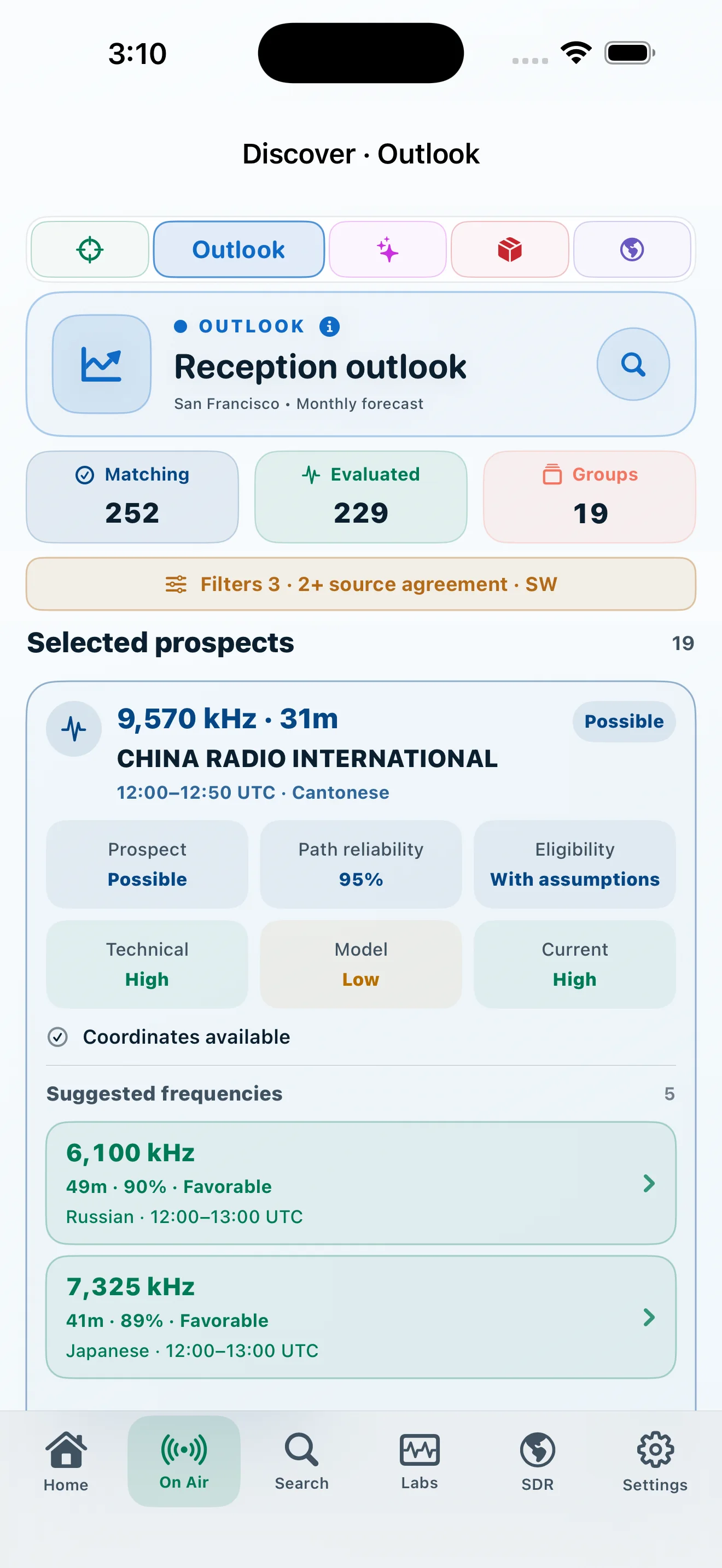
Find strong paths beyond the obvious beam.
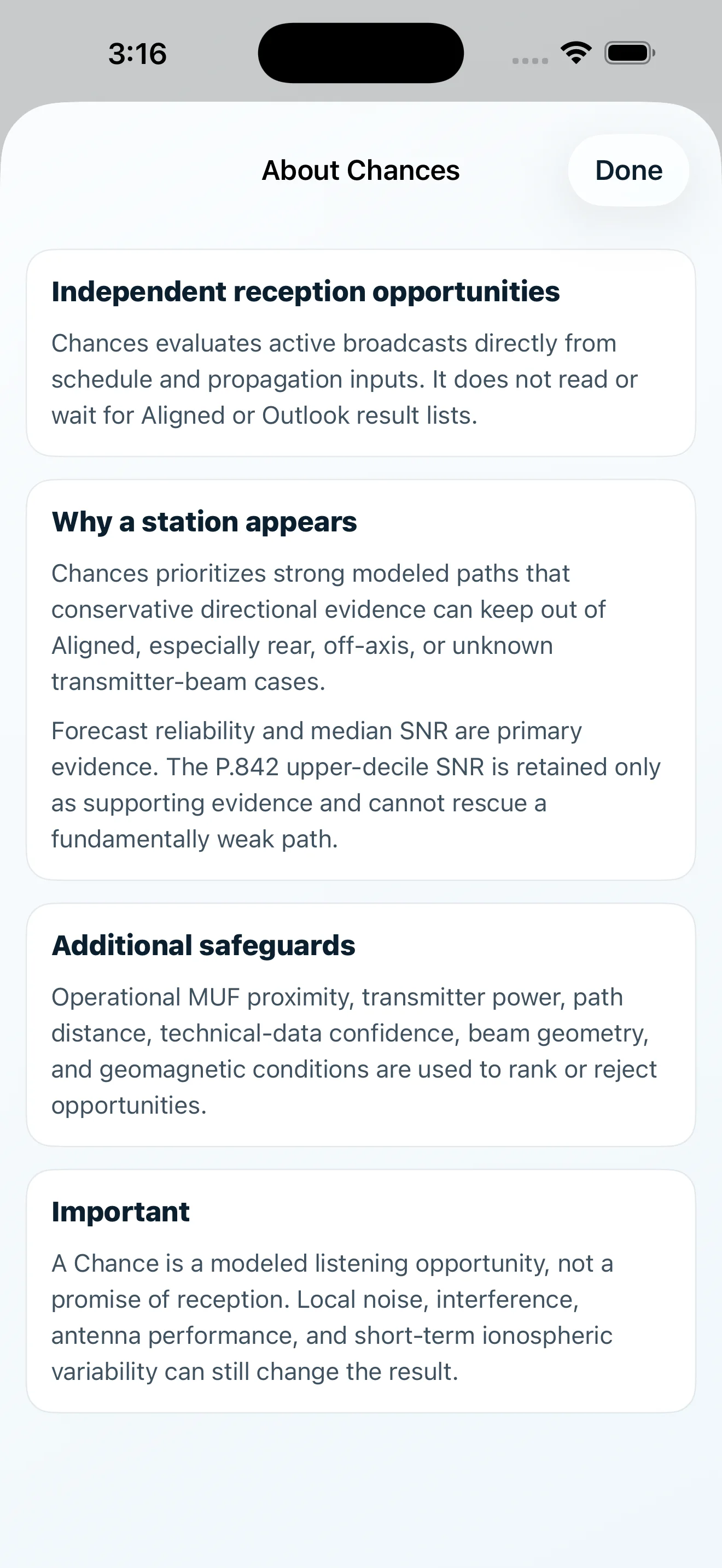
Chances evaluates schedule and propagation inputs independently, highlighting viable paths that conservative directional evidence may keep out of Aligned.
Read the On Air guide →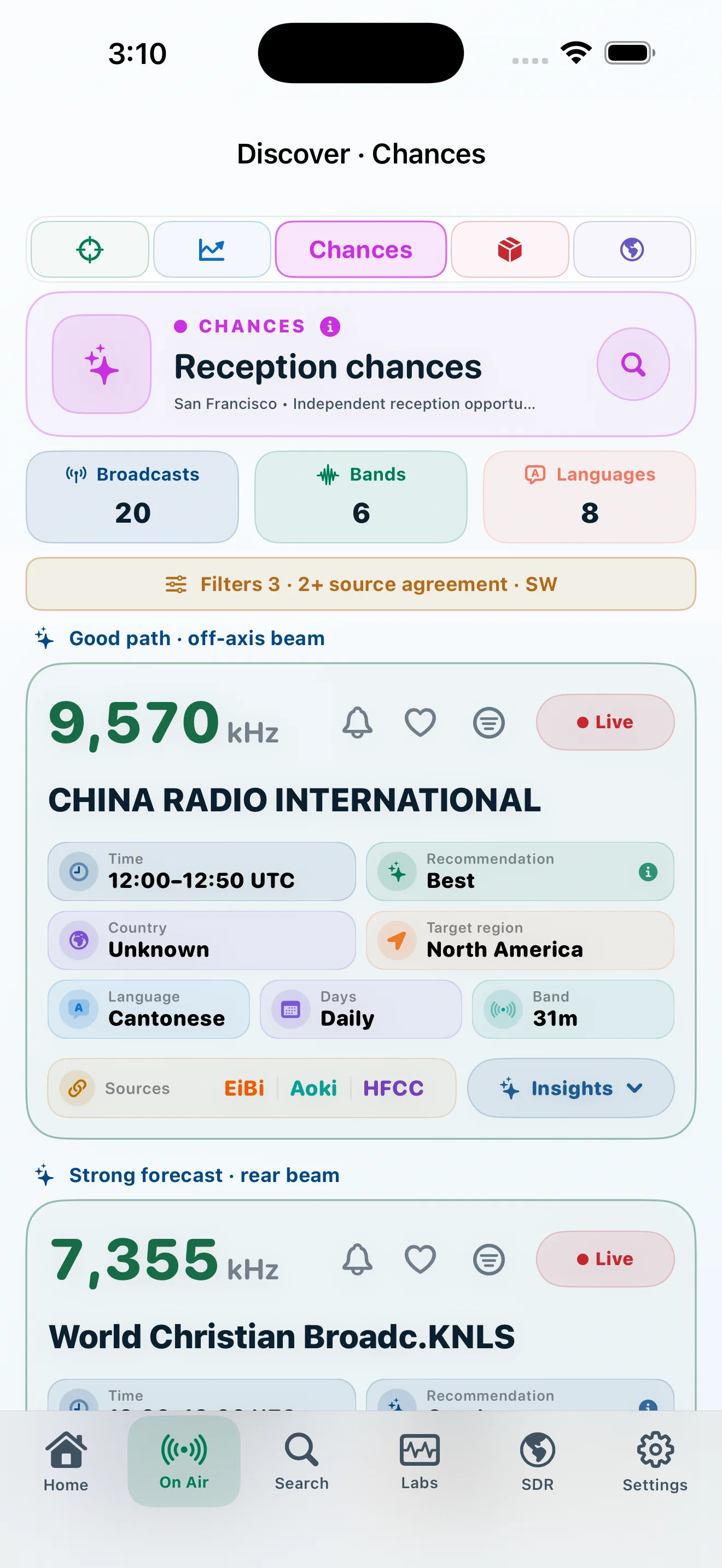
See the shared broadcast picture.
Merged brings EiBi, Aoki, and HFCC into one working schedule while keeping source attribution visible. Matching records are consolidated; meaningful conflicts remain inspectable.
Read the On Air guide →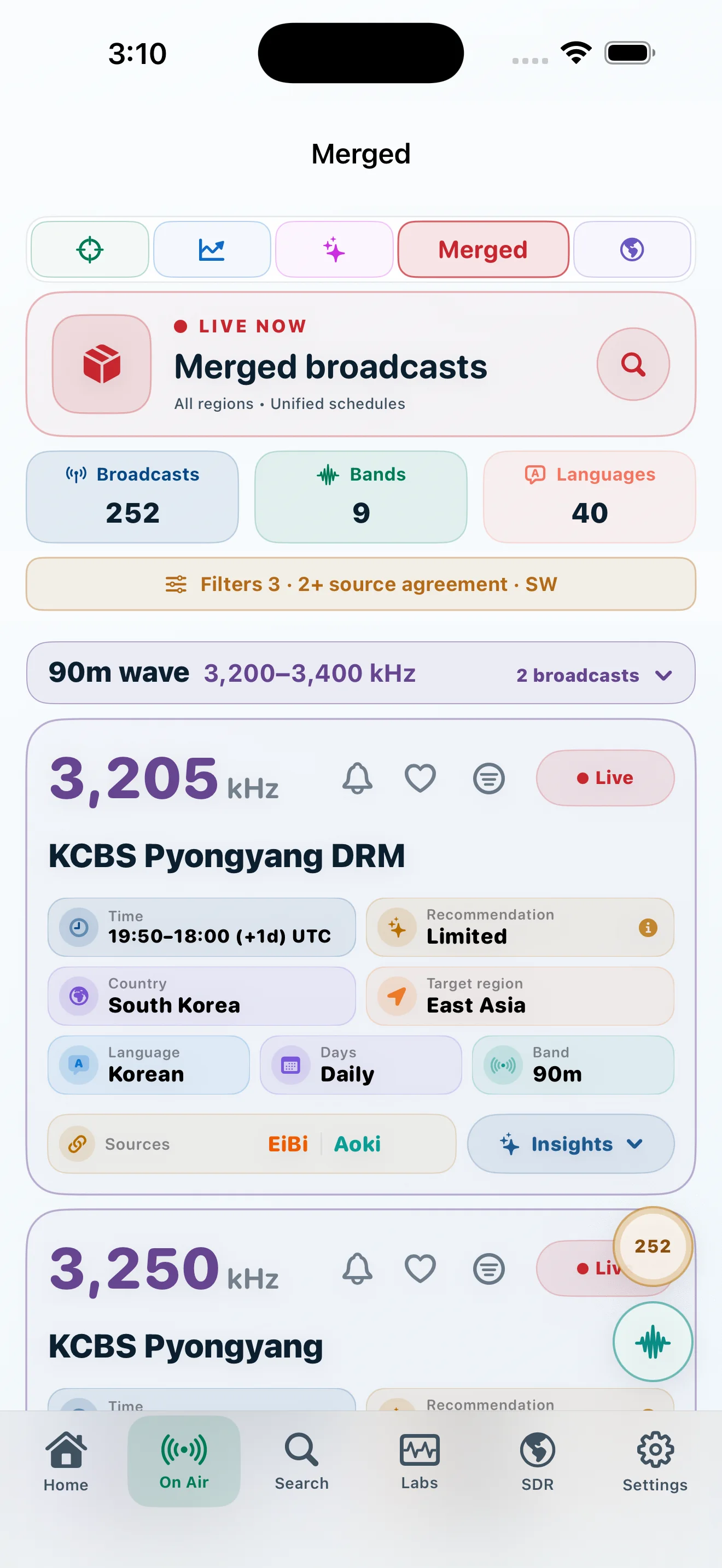
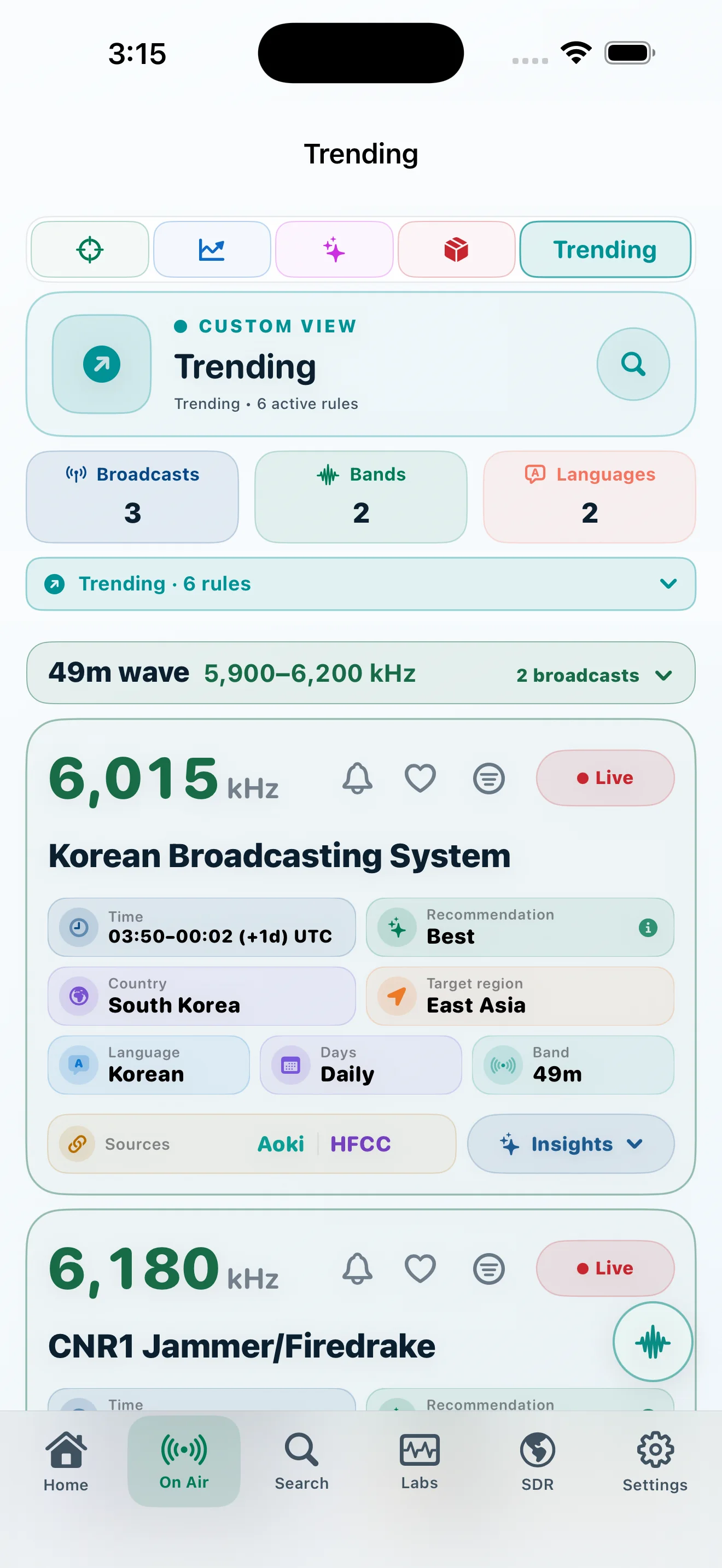
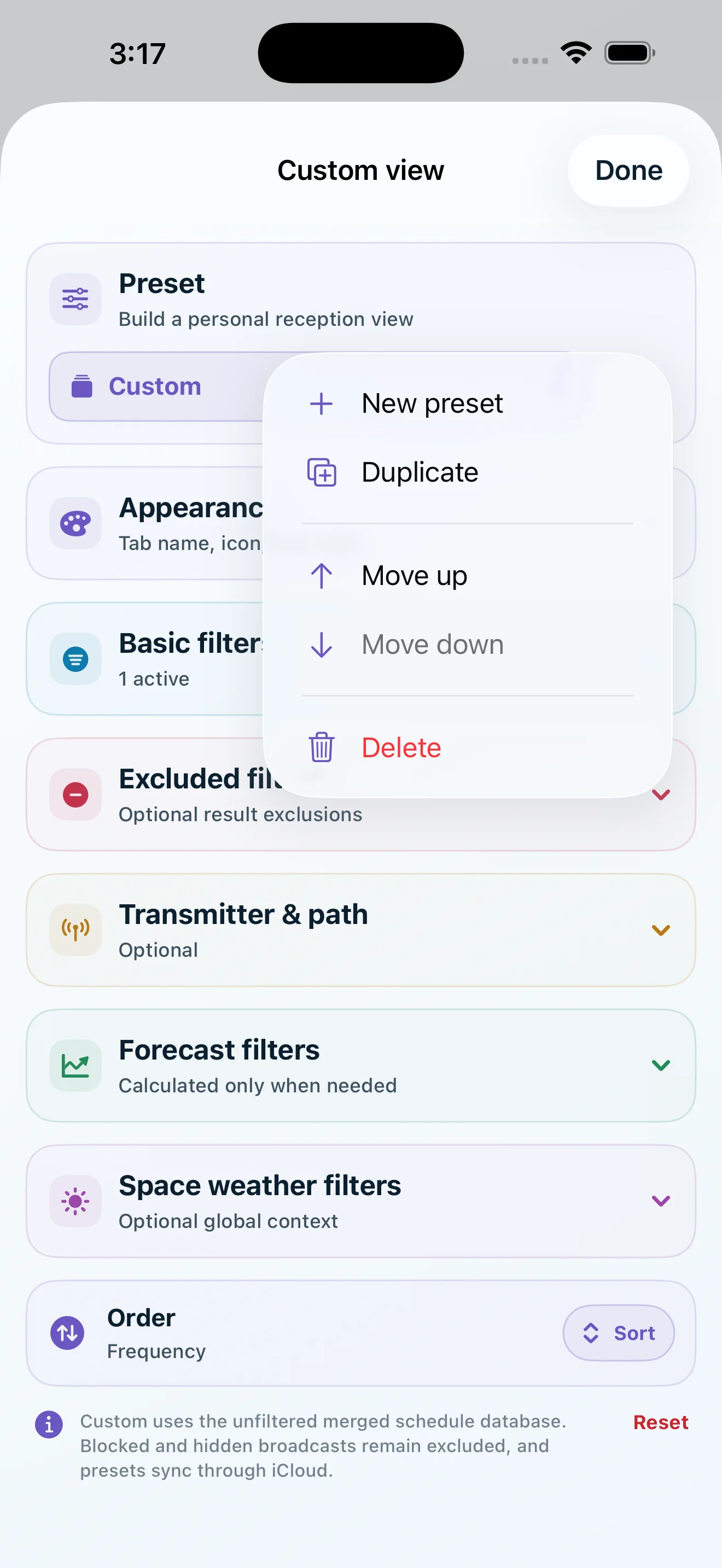
Build a tab around what matters to you.
Create reusable views with your own name, icon, color, schedule rules, exclusions, transmitter path, forecast thresholds, space-weather context, and ordering.
- Multiple named presets
- Appearance, rules, exclusions, path, forecast, and ordering
- Reorder, duplicate, or delete views
Show the destinations you use. Hide the ones you do not.
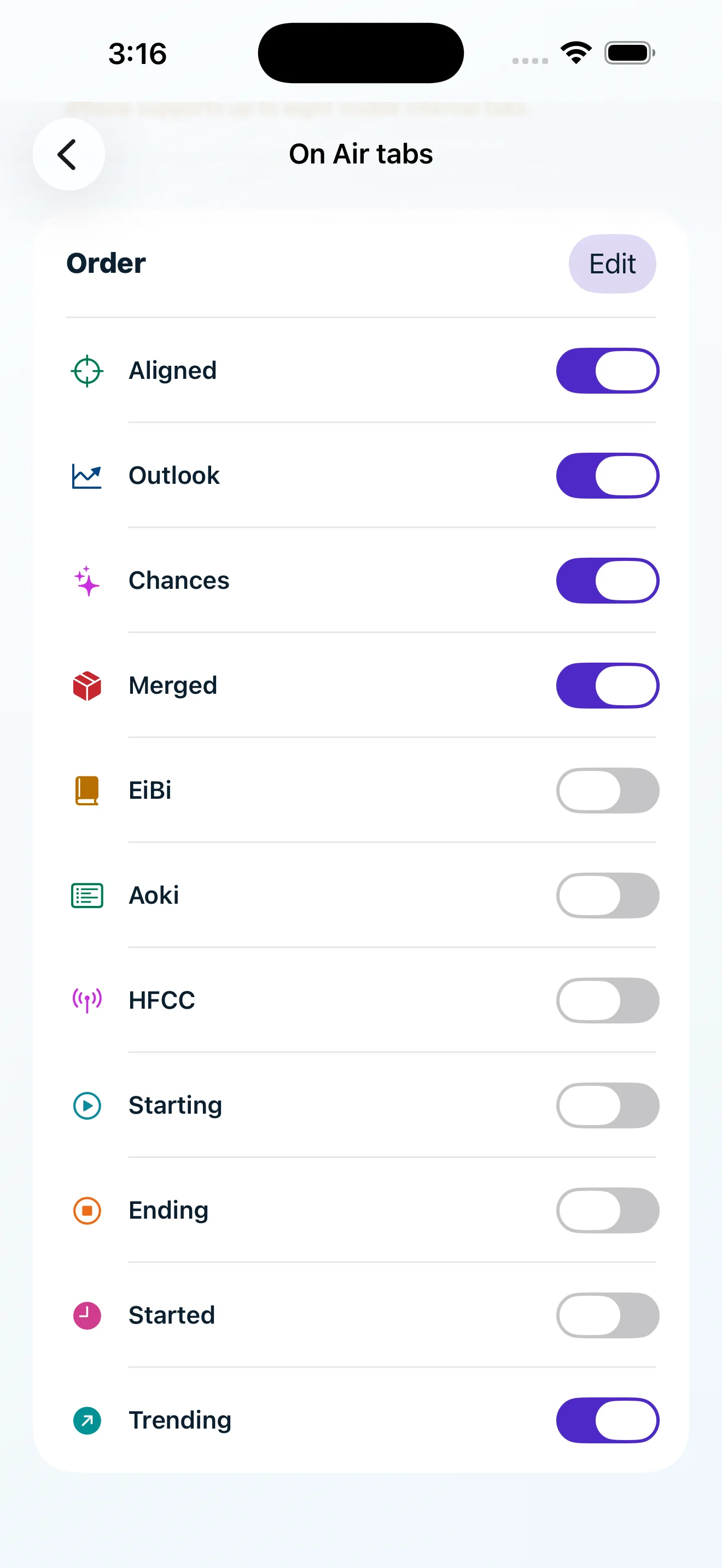
The app exposes the five primary destinations by default and lets you reorder internal On Air tabs, reveal source-specific views, or add Custom presets.
See the schedule. Understand the path. Hear the world.